How a Monitor Arm Can Optimize Your Home Office Ergonomics
What if your screen could adjust to you, instead of the other way around? For anyone who spends hours working at a computer, it's a question worth asking. A screen that's too high, too low, or too far away can leave you leaning forward, craning your neck, or shifting into uncomfortable positions just to see your work. A monitor arm offers a simple solution. By making it easy to adjust the height, distance, and angle of your screen, a monitor arm helps you create a workspace that fits your body and the way you work. And when things change, e.g., the afternoon sun creates a glare that makes it hard to read your screen, you can change the position of your screen, too.

How do monitor arms work?
Monitor arms use counterbalance mechanisms to support the weight of a screen while allowing you to move it easily into position. Unlike a fixed monitor stand, a fully adjustable arm lets you raise, lower, tilt, swivel, and reposition your display. Most monitor arms use one of two mechanisms to make that movement possible. Spring-assisted systems use geometric springs that compress and extend to counterbalance the monitor's weight. Herman Miller's Flo Monitor Support, for example, features a patented geometric spring system that allows for fingertip control. Simply guide your screen into position and let go. It stays where you want it, without the need to lock or tighten anything. Elastic Cord Technology use compressed gas to create smooth, controlled movement. The Ollin Monitor Arm uses this technology to support devices weighing up to 20 pounds. An integrated thumbwheel lets you adjust the arm's tension without tools, making it easy to accommodate screens of different weights. Both types of monitor arms attach to a desk using a clamp or grommet mount. Their articulating designs offer multiple pivot points, allowing you to move your screen closer, farther away, higher, lower, or into a different viewing angle. That freedom of movement makes monitor arms especially useful with sit-to-stand desks, where your ideal screen position changes as you move between sitting and standing.
Are monitor arms worth it?
By giving you more control over your workspace, helping you position your screen for greater comfort, flexibility, and collaboration, a monitor arm addresses fundamental ergonomic problems that can affect your health and performance at work. At Herman Miller, we've long believed that furniture should respond to people—not the other way around. And when it comes to monitor placement, there's good reason for that thinking. Here are some of the major issues and how using monitor arms can help address them.
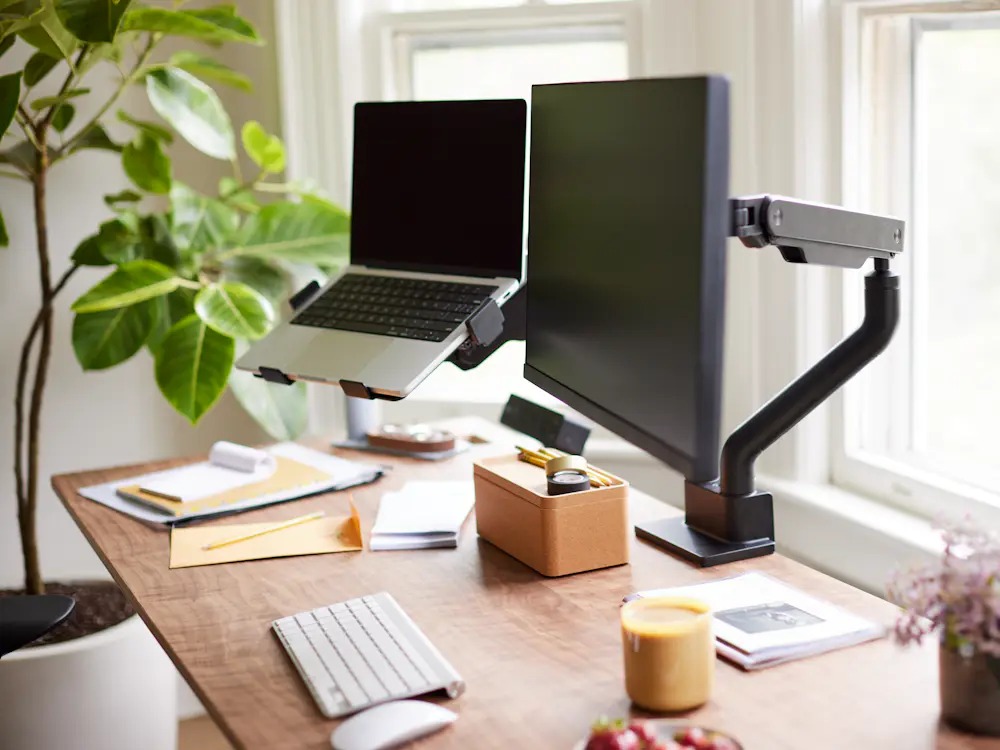
Monitor Arm Benefits
- Solving the individual variation problem
A standard monitor with limited adjustability sitting on a standard desk is ergonomically correct for only a small fraction of those people. Everyone else must contort their bodies to achieve proper viewing distance and angle. Research also indicates that people prefer viewing distances between 20 and 39 inches, depending on factors such as age, vision, and individual preference.
With limited screen adjustability, people often compensate by leaning forward, craning their necks, or holding awkward positions for long periods. This can contribute to musculoskeletal disorders, which affect 48 to 80 percent of computer users. A monitor arm changes that relationship. Instead of adjusting your body to accommodate your screen, you can adjust your screen to accommodate your body.
- Supporting shared workspaces
Shared workpoints have to accommodate multiple users with different body dimensions and visual needs. An ergonomic monitor arm allows each person to quickly adjust the screen to their needs. When that person is done working, the next person can adjust it to their preference.
This flexibility is difficult to achieve with fixed monitors, making monitor arms a practical solution for shared and unassigned workspaces.
- Enhancing collaboration
Research suggests that 70 percent of collaboration happens at individual workstations rather than in dedicated meeting spaces. With a fixed monitor, sharing a screen can mean leaning, stretching, or hovering awkwardly to get a good view.
An adjustable monitor arm makes it easier. Simply swivel or tilt the display toward a colleague so you can review content together, whether you're discussing a design, reviewing data, or troubleshooting a problem.
It's a small adjustment that can make collaboration feel more natural and comfortable for everyone involved.
- Reducing health-related costs
Musculoskeletal disorders affect an estimated 48 to 80 percent of computer users, according to research. Back pain is also a significant contributor to lost workplace productivity, with estimated annual costs of $7.4 billion for workers aged 40 to 65.
A monitor arm can be one part of a more ergonomic workstation. By allowing you to position your screen at a comfortable height and distance, it helps reduce the need to maintain awkward viewing postures throughout the day.
While no single product can eliminate discomfort on its own, greater screen adjustability can support healthier working habits and contribute to a more comfortable, productive workspace.
Herman Miller monitor arms
One screen or two? Working or gaming? A dedicated desk or a space that changes throughout the day? Different activities call for different solutions. Herman Miller offers monitor arms designed to accommodate a range of screens, workspaces, and ways of working. Here's a closer look.
Jarvis Single Monitor Arm
A simple way to make more room for comfort
The Jarvis Single Monitor Arm brings adjustability to a single-screen setup, making it easy to find a comfortable viewing position while keeping your desk clear.
Designed for monitors from 13 to 32 inches and weighing up to 19 pounds, Jarvis offers 13.2 inches of height adjustment. It swivels 360 degrees and rotates between landscape and portrait orientations, giving you the freedom to arrange your screen around the work at hand.
Integrated cable management keeps cords neatly out of the way, while a choice of black, white, or silver finishes lets Jarvis fit into a variety of workspaces.
Prefer working from a laptop? An optional laptop tray supports devices weighing up to 17 pounds and offers swivel and tilt adjustment.
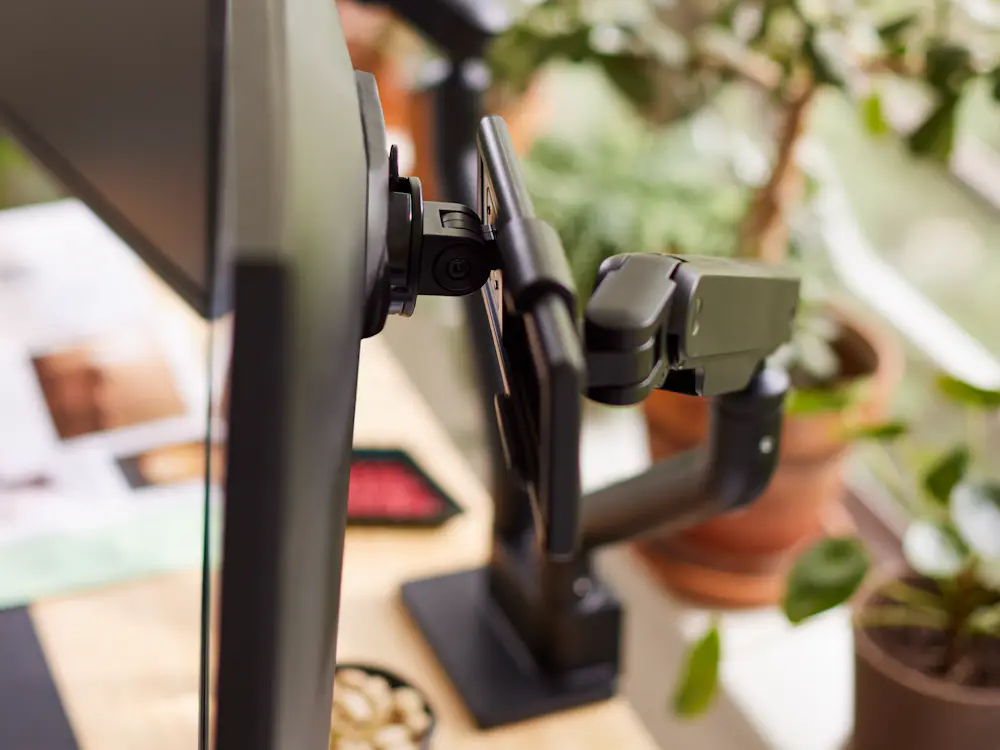
Jarvis Single Monitor Arm specifications
- Monitor compatibility: 13–32 inches
- Height range: 10⅝–23⅞ inches
- Height adjustment: 13.2 inches
- Monitor weight capacity: Up to 19 pounds
- Optional laptop tray capacity: Up to 17 pounds
- Product weight: 10 pounds
- Mounting options: Desktop clamp or grommet mount
- VESA compatibility: 75 × 75 mm and 100 × 100 mm
- Finishes: Black, white, silver
- Warranty: 10 years
Jarvis Dual Monitor Arm
Twice the screens. Plenty of flexibility.
Sometimes one screen isn't enough. Whether you're comparing documents, working across applications, or keeping reference material in view, a second display can give you more room to work.
The Jarvis Dual Monitor Arm supports two independently adjustable screens from a single base. Each arm accommodates monitors from 13 to 32 inches and weighing up to 19 pounds, with 13.2 inches of height adjustment. Both swivel 360 degrees and rotate between landscape and portrait orientations.
Position your monitors side by side, adjust them independently, or pair one with an optional laptop tray.
Because both arms share a single base, you have more room on your desk for everything else.
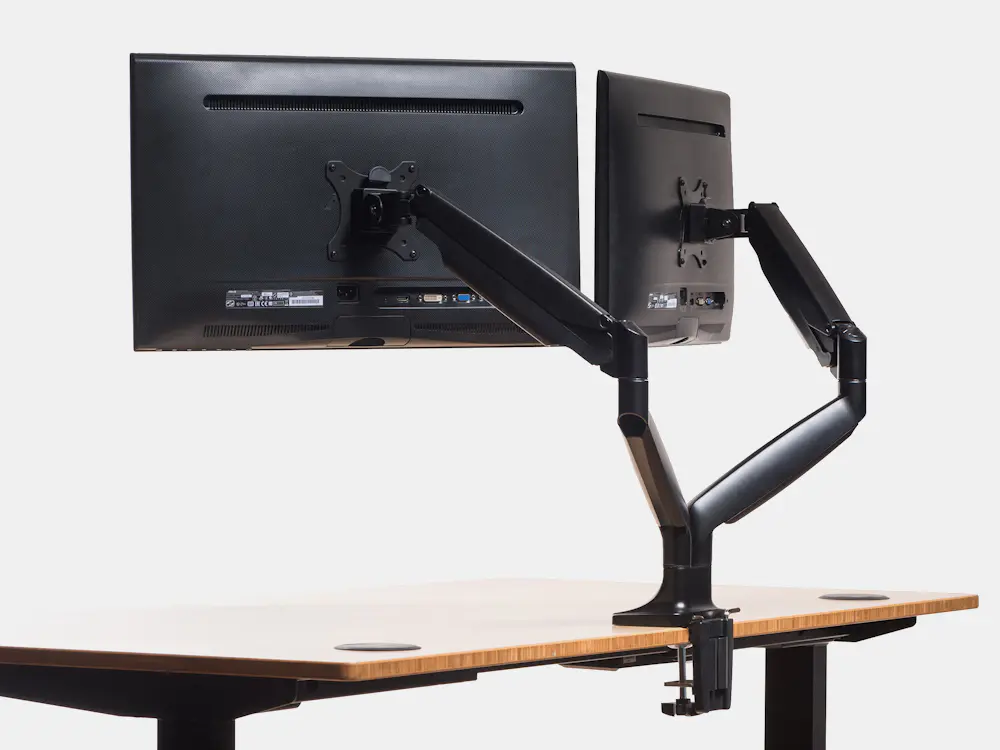
Key specifications
- Monitor compatibility: Two monitors, 13–32 inches each
- Height range: 10⅝–23⅞ inches per arm
- Height adjustment: 13.2 inches per arm
- Weight capacity: Up to 20 pounds per arm
- Product weight: 18 pounds
- Mounting options: Desktop clamp or grommet mount
- Maximum desktop thickness: 2.5 inches
- VESA compatibility: 75 × 75 mm and 100 × 100 mm
- Finishes: Black, white, silver
- Warranty: 10 years
Ollin Gaming Monitor Arm
Find your angle. Stay in the game.
When you're immersed in a game, your screen should be exactly where you want it.
The Ollin Gaming Monitor Arm offers a generous range of movement for precise positioning. It extends 26.5 inches horizontally and adjusts 13.5 inches vertically, with 80 degrees of backward tilt and 10 degrees of forward tilt.
Its gas piston mechanism creates smooth, controlled movement, while an integrated thumbwheel makes tension adjustment easy with no tools required.
Ollin's powder-coated aluminum construction provides durability without excessive bulk. A three-point cable management system helps keep cords organized and out of the way.

Ollin Gaming Monitor Arm specifications
- Horizontal adjustment: Up to 26.5 inches
- Vertical adjustment: 13.5 inches
- Height range: 13¼–19¼ inches
- Maximum depth: 26⅝ inches
- Tilt: 80° backward, 10° forward
- Weight capacity: Up to 20 pounds
- Material: Powder-coated aluminum
- Mounting: Desktop clamp, for surfaces up to 2.5 inches thick
- Finish: Black
- Warranty: 12 years
Flo Monitor Support
A light touch goes a long way
Good design has a way of making complicated things feel simple. Flo Monitor Support, which has been thoughtfully engineered to make your screen easier to move, is a good example.
Its patented geometric spring technology allows you to move your screen with just a fingertip, without any locking mechanisms or manual tightening. Simply position your monitor where you want it and let go.
Flo supports screens weighing between 7 and 20 pounds, with precise height and depth adjustment. That flexibility is particularly useful for people who wear progressive lenses and need to find a specific viewing angle.
Made from powder-coated aluminum, Flo comes fully assembled and attaches to your desk with a surface clamp.

Flo Monitor Support specifications
- Height range: 6–18½ inches
- Maximum depth: 23 inches
- Weight capacity: 7–20 pounds
- Mechanism: Patented geometric spring technology
- Material: Powder-coated aluminum
- Mounting: Surface clamp
- Assembly: Fully assembled
- Warranty: 12 years
Lima Gaming Monitor Arm
A better view at the touch of a button
Designed by Colebrook Bosson Saunders, the award-winning Lima Gaming Monitor Arm makes screen adjustment refreshingly straightforward. A button-activated mechanism lets you change the height of your monitor as your needs change.
Lima supports flat-screen monitors weighing up to 14 pounds per arm. It offers 80 degrees of backward tilt, 10 degrees of forward tilt, and rotation between landscape and portrait orientations.
Its lightweight, injection-molded polymer construction provides stability without unnecessary weight, while four-point cable management keeps cords neatly organized.
Choose a single arm or a dual-arm configuration, depending on your setup.
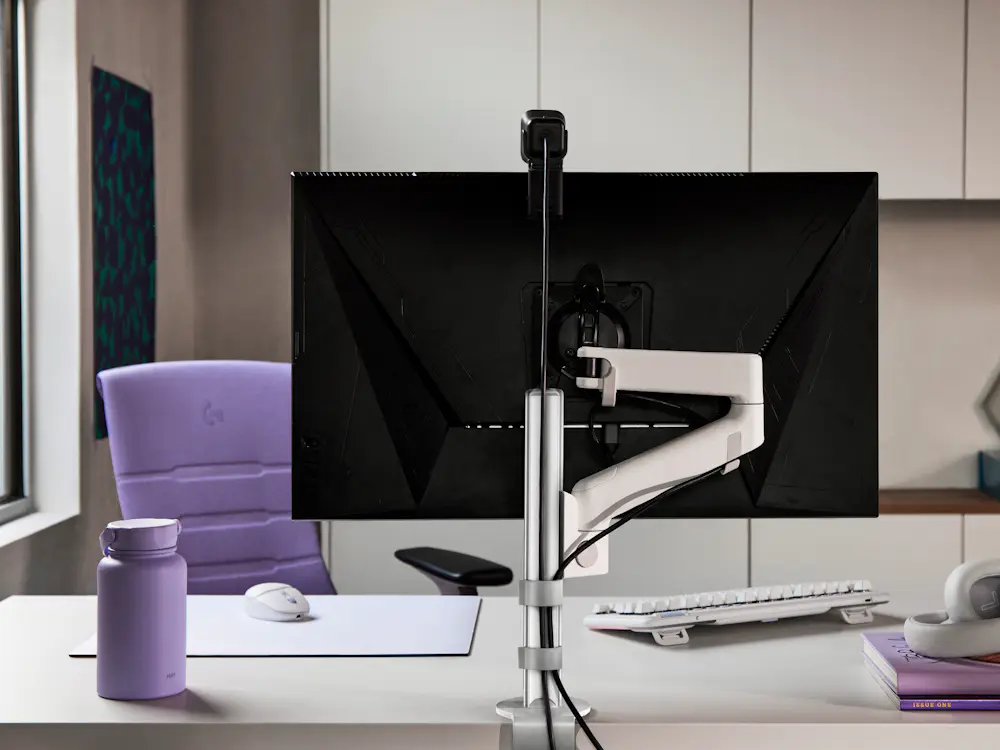
Lima Gaming Monitor Arm specifications
- Height range: 9½–17¾ inches
- Maximum extension: 18 inches
- Weight capacity: Up to 14 pounds per arm
- Product weight: 4.25 pounds (single), 6.25 pounds (dual)
- Dual-arm width: 28¾ inches
- Tilt: 80° backward, 10° forward
- Material: Injection-molded polymer
- Finishes: Black, white
- Warranty: 12 years
Setting up your ergonomic dual monitor arm
To get the full benefit of a dual monitor setup, make sure you configure it the right way. Herman Miller research identifies four steps:
- Assume correct posture: Sit with your back against the chair's lumbar support, feet flat on the floor, and forearms resting on the desk at a 90-degree angle.
- Designate your primary monitor: The main screen should sit directly in front of your body and display the content you actively create, such as reports, spreadsheets, or code. The secondary screen should display reference material.
- Adjust both monitors to parallel heights: Position both screens at eye level, with the top of each display at or slightly below your natural eye line. This helps prevent neck strain caused by looking down or twisting to view the secondary monitor.
- Orient your mouse toward the main screen: This helps prevent repetitive stress injuries by keeping your mouse in the near-reach zone rather than forcing your elbow toward full extension.
Shop Ergonomic Monitor Arms & Office Accessories
Related Articles

The Best Office Chairs for Back Pain
Coyl replaces the traditional toggle switch found on most height-adjustable desks with a rotary dial control. This design choice provides tactile feedback and allows users to select specific height positions with greater precision. The dial enables players to identify and return to their preferred setting consistently, which matters for competitive gaming where screen height and viewing angle affect reaction time and posture.

Standing Desk Ergonomics: Research, Benefits & How to Choose
The Coyl Gaming Desk integrates a built-in power supply directly into the desk structure. This eliminates the need for separate power strips on the desktop or floor. The power integration works in tandem with the cable trough to route power cables and peripheral connections through a single management system.